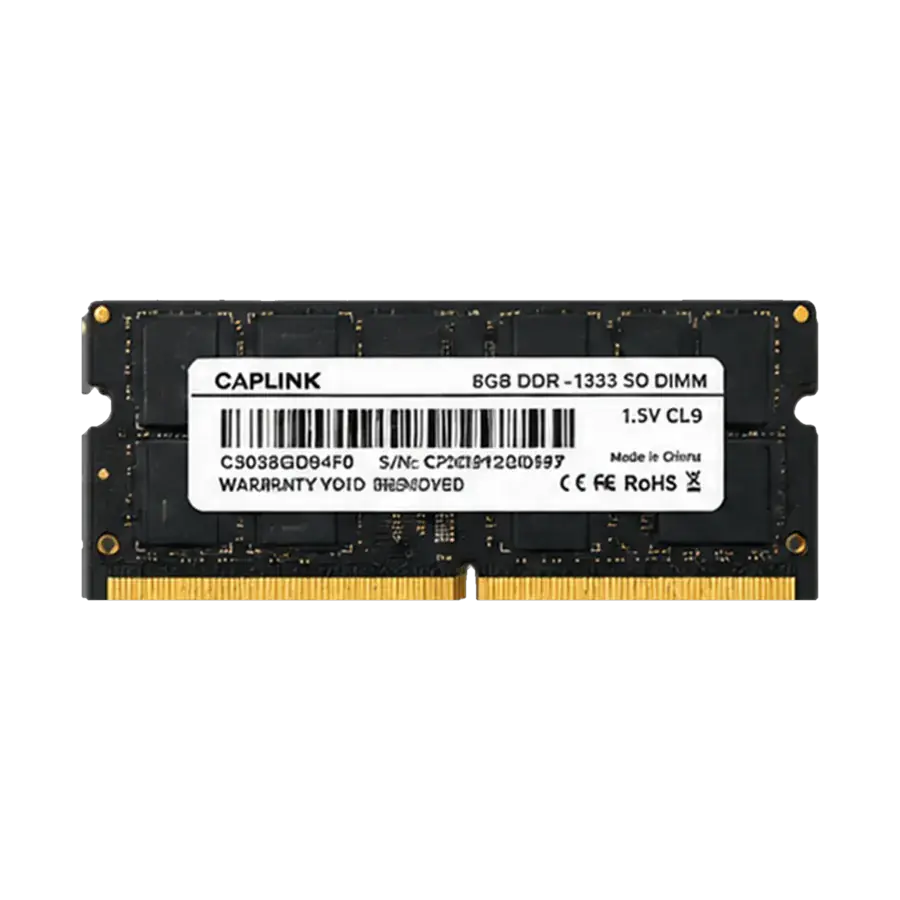
Most RAM and SSD upgrade problems come down to one thing: the part does not match the device. For repair shops, IT departments and online sellers, a two-minute compatibility check prevents returns and unhappy customers. This guide shows exactly what to check and how, for laptops and desktops.
The compatibility checklist
| Item | RAM | SSD |
|---|---|---|
| Generation / interface | DDR3, DDR3L, DDR4 or DDR5 | SATA, NVMe PCIe 3.0 or 4.0 |
| Form factor | SODIMM, UDIMM or soldered | 2.5", M.2 2280/2242/2230, mSATA |
| Slots | Number of free slots | Number and type of M.2/SATA bays |
| Maximum | Max per slot and total | Max supported capacity (rarely an issue) |
| Speed | Platform maximum MT/s | PCIe generation of the slot |
| Physical | Module height | Single- or double-sided M.2, 7mm vs 9.5mm 2.5" |
Step 1: Identify the exact device model
Find the model on the label under the laptop or in system information:
- Windows:
msinfo32→ System Model; or PowerShellGet-CimInstance Win32_ComputerSystem. - macOS: Apple menu → About This Mac (most recent Macs have soldered RAM and SSD).
- Linux:
sudo dmidecode -s system-product-name.
Then open the manufacturer's specification page or service manual — the most reliable source for slots and limits.
Step 2: Check current RAM
- Windows (PowerShell):
Get-CimInstance Win32_PhysicalMemory | Select Capacity, Speed, PartNumber, DeviceLocator - Windows (tool): CPU-Z → Memory and SPD tabs show DDR type, speed and each slot.
- Linux:
sudo dmidecode -t memory— lists every slot, including empty ones.
Look for: DDR generation, speed, how many slots exist and how many are used, and whether some memory is soldered on the board (common in thin laptops — only the free slot can be upgraded).
Step 3: Choose the right memory
| Device | Typical memory | Our product |
|---|---|---|
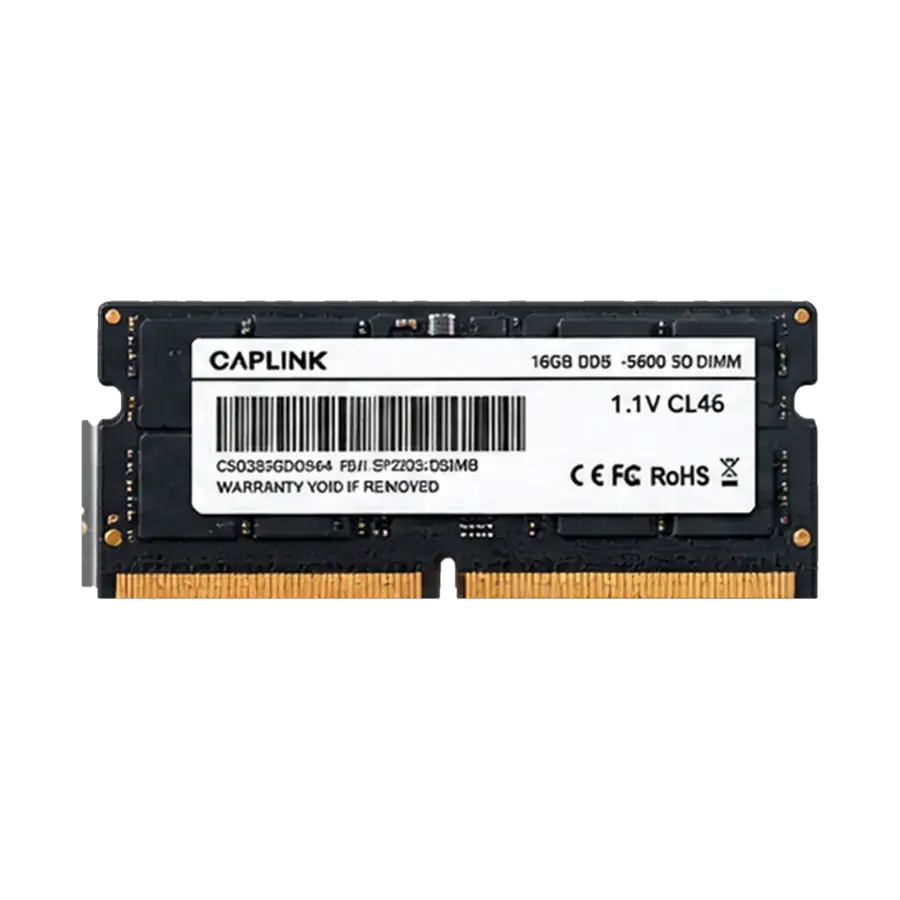
| Laptop / mini PC, newer | DDR5 SODIMM | DDR5 SODIMM |
| Laptop / mini PC, 2015–2022 | DDR4 SODIMM | DDR4 SODIMM |
| Older laptop needing low voltage | DDR3L SODIMM (1.35V) | DDR3 / DDR3L SODIMM |
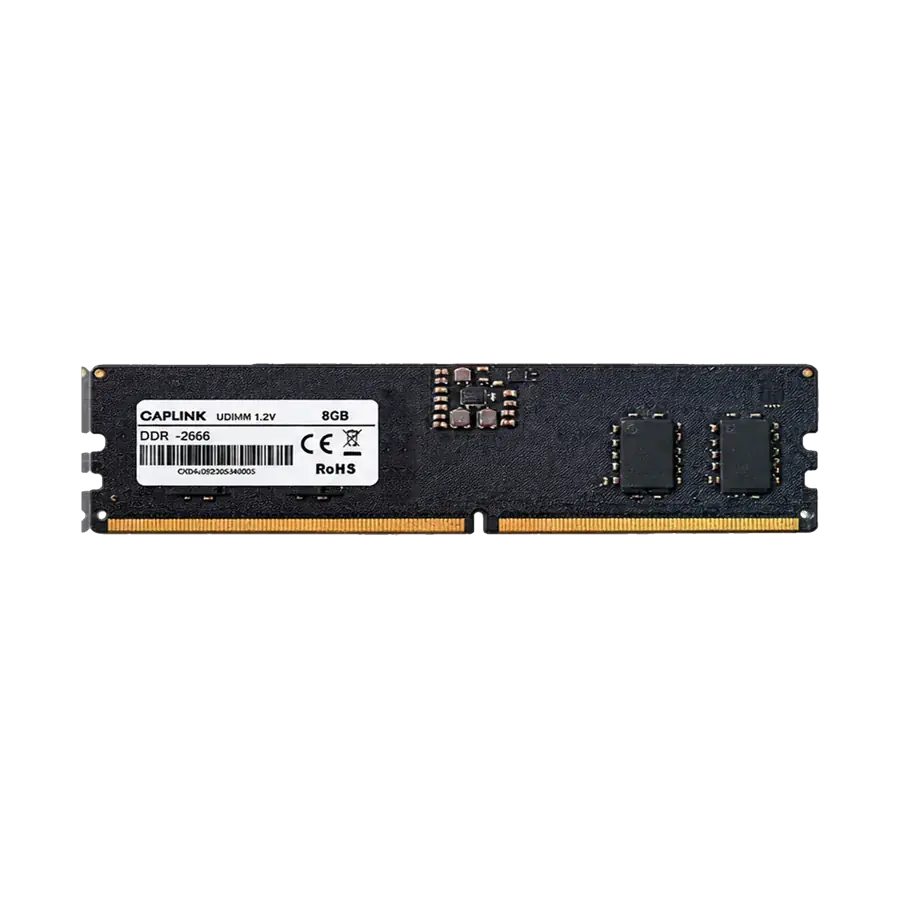
| Desktop, newer | DDR5 UDIMM | DDR5 UDIMM |
| Desktop, 2015–2022 | DDR4 UDIMM | DDR4 UDIMM |
Form factor details: SODIMM vs UDIMM. DDR5 speeds: DDR5 4800 vs 5600.
Step 4: Check SSD slots and interface
- Windows: Device Manager → Disk drives shows the current drive; PowerShell
Get-PhysicalDisk | Select FriendlyName, MediaType, BusTypeshows NVMe or SATA. - CrystalDiskInfo shows the interface mode (e.g. "PCIe 3.0 x4" or "SATA/600").
- Manual / spec sheet: confirms free M.2 slots, supported lengths (2242/2280) and whether a slot supports NVMe, SATA or both.
| Found | Choose |
|---|---|
| 2.5" bay (laptop or desktop) | 2.5" SATA SSD |
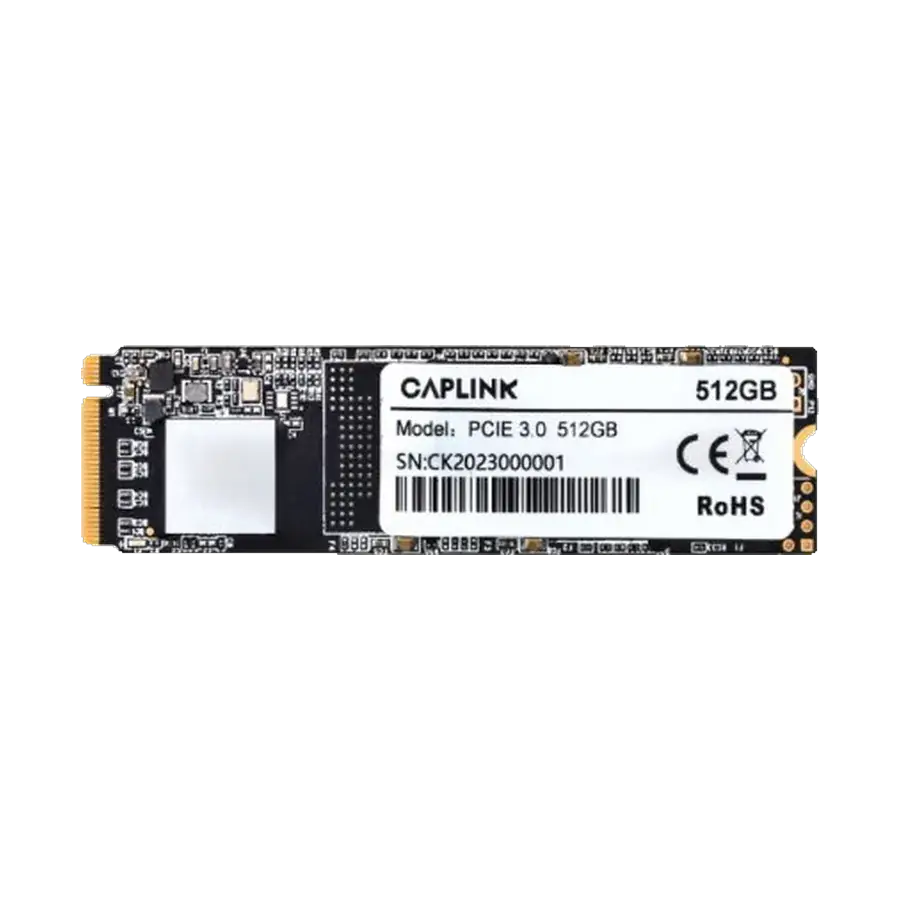
| M.2 2280, NVMe Gen 3 | M.2 2280 NVMe PCIe 3.0 |
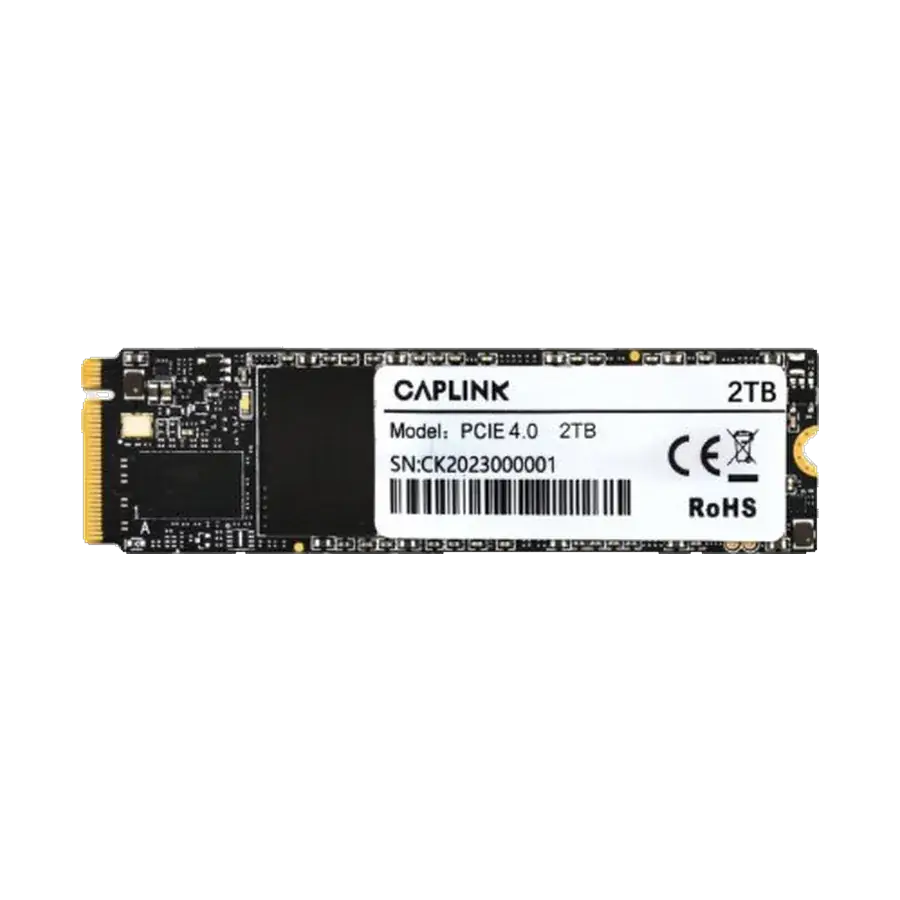
| M.2 2280, NVMe Gen 4 | M.2 2280 NVMe PCIe 4.0 |
| M.2 2280, SATA only | M.2 2280 SATA |
| M.2 2242 | M.2 2242 NVMe or SATA |
| mSATA (older laptops, industrial PCs) | mSATA SSD |
M.2 sizes and keys: M.2 SSD sizes explained. Gen 3 vs Gen 4: PCIe 4.0 vs 3.0.
Step 5: Watch for common traps
- Soldered memory — some laptops have no RAM slot at all.
- DDR3 vs DDR3L — some laptops require 1.35V DDR3L.
- SATA-only M.2 slots — NVMe drives will not be detected.
- 2230 bays in handhelds and some ultrabooks — 2242 and 2280 do not fit.
- Thin laptops may need single-sided M.2 drives.
- BIOS updates can add support for newer memory and drives.
- Cloning or fresh install — plan the data migration and, for NVMe, make sure the OS image has NVMe drivers (older Windows images).
Step 6: After installation
- Confirm the full capacity and speed in BIOS and in the OS.
- For RAM, check dual channel is active (CPU-Z → Memory → Channels).
- For SSDs, check the interface mode and enable TRIM (default on modern systems).
- Run a quick speed test — see our SSD sample testing checklist for tools.
For resellers: put compatibility in the listing
State generation, form factor, capacity and speed in the title, add a "fits / does not fit" list, and ask customers for their device model at checkout. Send us your top device models and we will confirm compatibility for your RAM and SSD orders.
Summary
Identify the device model, read what is installed, confirm slots and limits from the manual, and match generation, form factor and interface. Those steps prevent nearly all RAM and SSD returns. Request a quotation for DDR memory and SSDs.